


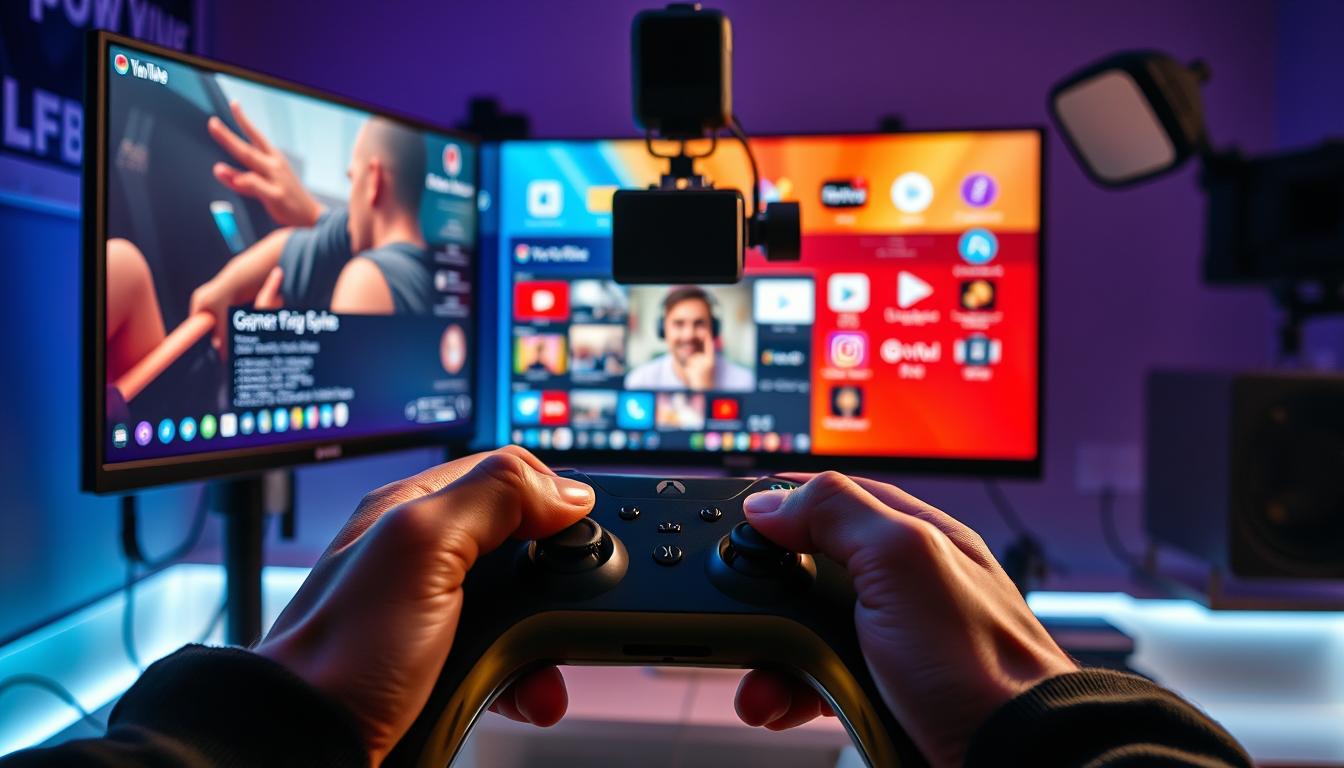

Gaming has become an integral part of modern entertainment, and streaming games on YouTube has emerged as a popular way for gamers to share their experiences. With the rise of mobile gaming, it’s now possible to stream games directly from your mobile device or PC. This has opened up new opportunities for gamers to connect with their audience and build a community around their gaming content.
How to Stream Games on YouTube from Your Mobile/PC
In this article, we will explore the process of YouTube game streaming and provide a step-by-step guide on how to get started. Whether you’re a seasoned gamer or just starting out, we’ll cover the essential aspects of mobile gaming streaming and help you to establish a strong presence on YouTube.
Key Takeaways
- Understand the basics of streaming games on YouTube
- Learn how to set up your mobile device or PC for streaming
- Discover the best practices for creating engaging gaming content
- Get tips on how to grow your audience and build a community
- Explore the essential tools and software for streaming
Getting Started with YouTube Game Streaming
Embarking on a YouTube game streaming journey requires a solid understanding of the platform’s capabilities and limitations. YouTube has emerged as a significant player in the game streaming world, offering a vast audience and various features that cater to streamers.
What You Need to Know Before Streaming
Before you start streaming, it’s crucial to understand YouTube’s community guidelines and terms of service. Familiarize yourself with the platform’s rules on content, copyright, and community behavior to avoid any potential issues. Additionally, consider your streaming goals, target audience, and the type of content you want to create.

YouTube game streaming benefits
Benefits of Streaming on YouTube vs Other Platforms
Streaming on YouTube offers several benefits over other platforms. YouTube’s massive user base and search functionality make it easier for new viewers to discover your content. YouTube also allows for longer streaming sessions and offers robust monetization options, including ads, sponsorships, and merchandise sales. Furthermore, YouTube’s integration with Google accounts can enhance your streaming experience and provide additional features.
By understanding these aspects, you can better position yourself for success in the world of YouTube game streaming.
Essential Requirements for Streaming Games on YouTube
The key to successful game streaming on YouTube lies in meeting the necessary hardware, internet, and account prerequisites. Ensuring you have the right setup is crucial for a smooth streaming experience.
Hardware Requirements for PC and Mobile
For PC streaming, you’ll need a computer with a strong processor, sufficient RAM, and a good graphics card. A dedicated capture card is also recommended for high-quality video capture. For mobile streaming, you’ll need a smartphone with a powerful processor, ample storage, and a good camera.
| Device | Minimum Requirements | Recommended |
| PC | Intel Core i5, 8GB RAM, NVIDIA GeForce GTX 1060 | Intel Core i7, 16GB RAM, NVIDIA GeForce RTX 3070 |
| Mobile | Quad-core processor, 4GB RAM, Android 10 or iOS 14 | Hexa-core processor, 8GB RAM, Android 11 or iOS 15 |
Internet Connection Specifications
A stable and fast internet connection is vital for streaming games on YouTube. The upload speed should be at least 5 Mbps for 1080p streaming and 10 Mbps for 1440p or 4K streaming.
“A good rule of thumb is to have an upload speed that is at least twice the bitrate of your stream.”
YouTube Account Prerequisites
To stream games on YouTube, you need to have a YouTube account with live streaming enabled. This requires verifying your account and meeting YouTube’s community guidelines.
By ensuring your hardware, internet connection, and YouTube account meet these requirements, you’ll be well on your way to streaming games successfully on YouTube.
Setting Up Your YouTube Channel for Streaming
To ensure a smooth streaming experience, setting up your YouTube channel correctly is vital. This involves several key steps that will help you prepare your channel for live streaming.
Enabling Live Streaming on Your Channel
The first step is to enable live streaming on your YouTube channel. To do this, you need to verify your account and ensure that it is in good standing. You can enable live streaming in the YouTube Studio under the “Live Streaming” tab.
Configuring Stream Settings
Configuring your stream settings is crucial for a high-quality streaming experience. This includes setting your stream resolution, bitrate, and other advanced settings. You can find these settings in the YouTube Studio under “Live Streaming” > “Stream Settings.”
- Set your stream resolution based on your hardware capabilities and internet connection.
- Choose an appropriate bitrate to balance quality and bandwidth usage.
- Consider using a stable and fast internet connection for streaming.
Creating Engaging Channel Graphics
Creating engaging channel graphics is essential for attracting and retaining viewers. This includes your channel art, profile picture, and other visual elements that represent your brand.
Use eye-catching visuals and consistent branding to make your channel stand out. Ensure that your graphics are optimized for different devices and screen sizes.
How to Stream Games on YouTube from Your PC
YouTube game streaming from a PC involves several steps, starting with selecting appropriate streaming software. This guide will walk you through the process, ensuring that you can share your gaming experiences with your audience effectively.
Choosing the Right Streaming Software
The first step in streaming games on YouTube from your PC is to choose the right streaming software. Popular options include OBS Studio and Streamlabs. OBS Studio is known for its flexibility and customization options, while Streamlabs offers a user-friendly interface and a range of features designed specifically for streamers.
OBS Studio Setup Guide
To set up OBS Studio, start by downloading and installing the software from the official website. Once installed, configure your settings by selecting the appropriate video and audio inputs. Configuring game capture is crucial; you can do this by adding a game capture source and selecting the game you wish to stream.
To capture your gameplay, add a new source in OBS Studio by clicking the “+” button under the sources tab. Select “Game Capture” and choose the appropriate settings for your game.
Streamlabs Setup Guide
Streamlabs is another popular choice for YouTube streamers. To set up Streamlabs, download and install the software, then follow the on-screen instructions to configure your stream settings. Customizing your stream layout is easy with Streamlabs, thanks to its intuitive interface.
Setting Up Microphone and Webcam
For high-quality streams, setting up your microphone and webcam is essential. Ensure that your audio and video devices are properly connected and configured within your streaming software. This will help you interact with your audience more effectively.
| Feature | OBS Studio | Streamlabs |
| Customization | Highly customizable | User-friendly interface |
| Game Capture | Supports multiple capture methods | Easy game capture setup |
| Audio/Video Quality | High-quality output | High-quality output |
By following these steps and choosing the right software, you can start streaming games on YouTube from your PC effectively.
PC Streaming: Advanced Configuration
For a superior YouTube gaming experience, optimizing your PC’s streaming settings is key. Advanced configuration can make a significant difference in stream quality and viewer engagement.
Optimizing Encoder Settings
Encoder settings play a crucial role in determining the quality of your stream. To optimize encoder settings, start by selecting the right encoder type. Hardware encoders like NVIDIA NVENC or AMD AMF are recommended for their efficiency and performance. Configure your encoder settings by adjusting the bitrate, frame rate, and resolution to match your internet upload speed and hardware capabilities.
For instance, a bitrate of 4500 kbps is suitable for 1080p streaming at 60 FPS. Ensure that your encoder settings are aligned with YouTube’s recommended streaming settings for the best results.
Setting Up Scenes and Sources
Scenes and sources are fundamental elements of your stream. A scene is a collection of sources that can be switched between during your stream. To set up scenes, create a new scene for different segments of your stream, such as gameplay, commentary, or interactive elements.
Sources can include video capture devices, audio inputs, and overlays. Configure your sources by adding them to your scenes and adjusting their properties. For example, you can add a capture card as a source for your gameplay and adjust its settings for optimal video quality.
Adding Overlays and Alerts
Overlays and alerts enhance the visual appeal of your stream and improve viewer engagement. Overlays can include information such as your stream title, current game, or donation tracker. Alerts notify your viewers of events like new followers or subscribers.
To add overlays and alerts, use streaming software like OBS Studio or Streamlabs. These platforms offer customizable overlay templates and alert systems that can be integrated into your stream. Customize your overlays to match your brand and stream theme, and set up alerts to notify your viewers of important events.
How to Stream Games on YouTube from Your Mobile Device
YouTube has made it possible for mobile gamers to stream their games directly to their audience. With the rise of mobile gaming, streaming from your mobile device is becoming increasingly popular.
Android Streaming Methods
For Android users, there are multiple ways to stream games on YouTube. The most straightforward method is using the YouTube Gaming app.
Using the YouTube Gaming App
The YouTube Gaming app allows users to stream their mobile games with ease. It provides features like live chat, screen recording, and game capture.
Third-Party Android Streaming Apps
Besides the YouTube Gaming app, third-party streaming apps like Streamlabs and OBS Studio offer more advanced features for Android users, including customizable overlays and alerts.
iOS Streaming Methods
iOS users also have several options for streaming their games on YouTube. One of the native methods is using ReplayKit for screen recording.
Screen Recording with ReplayKit
ReplayKit is a built-in iOS feature that allows users to record their screen. It can be used in conjunction with YouTube’s streaming capabilities to broadcast games.
Third-Party iOS Streaming Solutions
For more advanced streaming features, iOS users can turn to third-party apps that integrate with YouTube, offering functionalities like game streaming, chat integration, and more.
Whether you’re an Android or iOS user, streaming your mobile games on YouTube is now more accessible. By choosing the right method and tools, you can share your gaming experiences with a wider audience.
Legal Considerations for Game Streaming
Understanding the legal aspects of game streaming is essential for maintaining a compliant and successful YouTube channel. As you embark on this journey, it’s crucial to be aware of the legal landscape that governs game streaming.
Understanding Game Developers’ Streaming Policies
Game developers have varying policies regarding the streaming of their games. Some games are fully supported for streaming, while others may have restrictions. For instance, Blizzard Entertainment allows streaming of its games with certain guidelines. It’s vital to review these policies to avoid any potential legal issues.
Music Copyright Issues During Streams
Music copyright is a significant concern during game streams. Using copyrighted music without permission can lead to copyright strikes or even channel termination. Streamers can use YouTube’s audio library or opt for royalty-free music to mitigate this risk. Ensuring compliance with music copyright laws is crucial for maintaining a healthy channel.
“The use of copyrighted music in streams without proper clearance can result in severe penalties, including channel strikes and demonetization.”
Age Restrictions and Content Guidelines
YouTube has strict guidelines regarding age-restricted content. Streamers must adhere to these guidelines to avoid having their content removed or their channel penalized. Ensuring that your stream content complies with YouTube’s Community Guidelines is essential. This includes being mindful of mature themes, violence, and other sensitive content.
| Legal Consideration | Description | Action Required |
| Game Developers’ Policies | Varying policies on game streaming | Review and comply with game-specific policies |
| Music Copyright | Using copyrighted music without clearance | Use royalty-free music or YouTube’s audio library |
| Age Restrictions | YouTube’s guidelines on mature content | Comply with Community Guidelines, be mindful of content |
By understanding and adhering to these legal considerations, streamers can minimize risks and focus on growing their audience and content.
Optimizing Your Stream Quality
Stream quality optimization is a multifaceted process that involves several critical components. Achieving high-quality streams requires a comprehensive approach that addresses technical, hardware, and software aspects.
Finding the Right Resolution and Bitrate
To optimize your stream quality, it’s essential to find the right balance between resolution and bitrate. A higher resolution with a low bitrate can result in a poor-quality stream, while a high bitrate with a low resolution may not utilize the full potential of your stream.
| Resolution | Recommended Bitrate |
| 1080p | 4500 kbps |
| 720p | 2500 kbps |
| 480p | 1200 kbps |
Audio Setup for Clear Communication
Clear audio is just as important as high-quality video. To achieve clear communication, invest in a good quality microphone and adjust your audio settings accordingly. Use a pop filter to reduce plosive sounds and position your microphone correctly to capture your voice clearly.
Reducing Lag and Buffering Issues
Lag and buffering can significantly degrade the viewing experience. To minimize these issues, ensure your internet connection is stable and fast enough to support your stream’s bitrate. Additionally, consider using a wired connection instead of Wi-Fi for more reliability.
Engaging with Your Audience During Streams
Effective audience engagement is the backbone of a successful YouTube streaming strategy. When streamers interact with their viewers, it fosters a sense of community and encourages audience loyalty.
Managing Live Chat
Managing live chat is crucial for maintaining a positive and engaging environment during your streams. To do this effectively, you should monitor the chat closely, responding to comments and questions in real-time. This not only helps to build a connection with your viewers but also keeps the conversation flowing.
It’s also important to establish clear community guidelines to maintain a respectful and inclusive atmosphere. You can use moderation tools to remove inappropriate content and block or timeout users who violate your guidelines.
Using YouTube’s Interactive Features
YouTube offers several interactive features that can enhance viewer engagement during live streams. One such feature is Super Chat, which allows viewers to pay for their messages to be highlighted in the live chat. This not only provides a way for viewers to stand out but also offers a revenue stream for streamers.
Another feature is Polls, which can be used to engage viewers by asking for their opinions or preferences on various topics. This encourages audience participation and can make the stream more interactive.
Creating Compelling Stream Content
Creating compelling stream content is vital for keeping your audience engaged. This involves planning your stream content in advance, including any games you will play, discussions you will have, or challenges you will undertake. It’s also important to be authentic and passionate about the content you’re streaming.
Using a mix of different content types, such as gameplay, tutorials, or Q&A sessions, can help keep the stream interesting and cater to different viewer preferences. Additionally, incorporating viewer suggestions into your content can make your audience feel valued and more likely to continue watching.
By focusing on these strategies, streamers can significantly improve their audience engagement, leading to a more loyal and interactive community.
Growing Your YouTube Gaming Channel
With your YouTube gaming channel up and running, it’s time to explore methods to grow your audience. A well-rounded strategy is crucial for expanding your reach and increasing your channel’s visibility.
Analyzing Stream Performance with YouTube Analytics
YouTube Analytics is a powerful tool that provides insights into your stream’s performance. By analyzing metrics such as viewership, watch time, and audience retention, you can identify areas for improvement and adjust your content strategy accordingly. Regularly reviewing your analytics helps you understand what works and what doesn’t, enabling data-driven decisions to enhance your channel’s growth.
Promoting Your Streams on Social Media
Promoting your streams on social media platforms is an effective way to reach a broader audience. Share your stream schedules, highlights, and behind-the-scenes content on platforms like Twitter, Instagram, and Facebook to drive traffic to your YouTube channel. Engage with your followers by responding to comments and creating a community around your channel.
Collaborating with Other Streamers
Collaborating with other streamers can significantly boost your channel’s visibility. Partner with streamers who share your niche or target audience to co-stream games, host joint giveaways, or participate in community events. This collaborative approach can help you tap into new viewer bases and build meaningful connections within the gaming community.
Developing a Consistent Streaming Schedule
Consistency is key to maintaining and growing your audience. Develop a streaming schedule that works for you and stick to it. Regular streaming helps build anticipation and expectation among your viewers, keeping them engaged and coming back for more. A consistent schedule also improves your channel’s visibility in YouTube’s algorithm, potentially leading to more recommendations and growth.
Conclusion
Streaming games on YouTube has become a popular way to share gaming experiences with a vast audience. By following the steps outlined in this article, you can successfully set up your channel and start streaming.
A YouTube streaming summary reveals that key factors such as quality hardware, a stable internet connection, and engaging content are crucial for a successful stream. Optimizing your stream settings, interacting with your audience, and promoting your channel on social media can also enhance your streaming experience.
As you continue on your game streaming journey, remember to stay up-to-date with the latest trends and best practices. Analyze your stream performance using YouTube Analytics, and adjust your strategy accordingly. With persistence and creativity, you can grow your audience and build a loyal community around your channel.
By implementing the strategies discussed, you can achieve a successful YouTube streaming summary and make your mark in the gaming community.
FAQ
What are the minimum hardware requirements for streaming games on YouTube from a PC?
To stream games on YouTube from a PC, you’ll need a computer with a multi-core processor (at least Intel Core i5 or AMD equivalent), 8GB of RAM or more, a dedicated graphics card (such as NVIDIA GeForce or AMD Radeon), and a stable internet connection.
Can I stream games on YouTube from my mobile device?
Yes, you can stream games on YouTube from your mobile device. For Android devices, you can use the YouTube Gaming app or third-party streaming apps. For iOS devices, you can use screen recording with ReplayKit or third-party streaming solutions.
What is the recommended internet connection speed for streaming games on YouTube?
YouTube recommends a minimum upload speed of 5 Mbps for 1080p streaming at 60 FPS. However, for higher-quality streams or multiple streams, a faster internet connection is required.
How do I enable live streaming on my YouTube channel?
To enable live streaming on your YouTube channel, go to YouTube Studio, click on “Other Features,” and then select “Live Streaming.” Follow the prompts to set up live streaming, including verifying your account and agreeing to the terms of service.
What are the benefits of using OBS Studio for streaming games on YouTube?
OBS Studio is a popular, free, and open-source streaming software that offers advanced features, customization options, and compatibility with multiple platforms, making it a great choice for streaming games on YouTube.
How can I optimize my stream quality for a better viewer experience?
To optimize your stream quality, adjust your resolution and bitrate according to your internet connection speed, ensure clear audio by using a good-quality microphone, and reduce lag and buffering issues by closing unnecessary programs and using a wired internet connection.
Can I stream copyrighted music on YouTube without getting muted or penalized?
No, streaming copyrighted music on YouTube without permission can result in your stream being muted or penalized. YouTube has strict copyright policies, and using copyrighted music without clearance can lead to Content ID claims or even account suspension.
How do I analyze my stream performance using YouTube Analytics?
YouTube Analytics provides insights into your stream performance, including viewership, engagement, and earnings. To access YouTube Analytics, go to YouTube Studio, click on “Analytics,” and then select the “Live” tab to view your stream performance data.